I bought the Iengrave, and upon first test it worked fine. I then tried to attach the rotary and could not get it to work, so I went back to try more wood projects. Now it wont return to home, or frame. I makes aweful noises and wont move. HELP - so unhappy.
Hi and Welcome to the Community @Stephanie_Reller! I’m so sorry you’re dealing with this—especially after such a promising first test. That frustration is totally valid, and we’ll get you back on track.
Here are a few things to try:
 Power Cycle First
Unplug the machine completely (including the rotary if still attached), wait 30 seconds, then plug it back in. This can reset the motors and clear any lingering commands.
 Check for Rotary Mode Confusion
Sometimes the machine stays in rotary mode even after switching back. In the software, double-check that rotary mode is disabled and that your axis settings are back to default.
 Recalibrate the Origin
If it won’t return to home or frame properly, the origin point may be misaligned. Try manually moving the laser head to the front-left corner, then use the software to “Set Origin” again.
 Noises + No Movement = Motor Jam or Sensor Issue
Awful noises usually mean the motors are trying to move but are blocked. Check for:
• Loose belts or pulleys
• Obstructions on the rails
• A misaligned limit switch or sensor (door sensor)
 Firmware + Software Check
Make sure both your machine firmware and the engraving software are up to date. Sometimes rotary attachments trigger unexpected bugs that updates can fix.
You’re not alone in this—rotary setups can be finicky, and it’s okay to feel overwhelmed. If you want to share a video or screenshot, we can help pinpoint the issue even faster. You’ve got this, and we’ve got you!
Could you also let us know what device you’re using with your iEngrave, and which software you’re running? That info will help us tailor the troubleshooting steps more precisely.
2 Likes
I have tried all of these options and still not working. I also get this error which wont clear.
Waiting for connection…
Port failed to open - already in use?
Waiting for connection…
Port failed to open - already in use?
Waiting for connection…
error: GCode cannot be executed in lock or alarm state
[VER:1.3a.20211103:]
[OPT:PHSW,64,512]
Target buffer size found
[Board:BOARD V1.2]
[Machine:LOKLiK iEngrave]
[Software:v-2.0.18]
[Wavelength:450-460nm]
[Power:10W]
[Working Size:XSIZE=300.00:YSIZE=300.00]
,63,2048]
[MSG:Mode=AP:SSDI=LOKLIK LEF01_05A8:IP=192.168.0.1:MAC=F0-9E-9E-5A-05-A9:password=12345678]
[SN:LOKLIK_IENGRAVE_1-J00AHUSL001523256910057]
ok
[G54:0.000,0.000]
[G55:0.000,0.000]
[G56:0.000,0.000]
[G57:0.000,0.000]
[G58:0.000,0.000]
[G59:0.000,0.000]
[G28:0.000,0.000]
[G30:0.000,0.000]
[G92:0.000,0.000]
[TLO:0.000]
[PRB:0.000,0.000:0]
ok
Homing
error: Check door
error: Before resetting, it was in an alarm state,please unlock first
Starting stream
error: GCode cannot be executed in lock or alarm state
On or near line 1:
error: GCode cannot be executed in lock or alarm state
On or near line 1:
Stream completed in 0:00
error: GCode cannot be executed in lock or alarm state
error: GCode cannot be executed in lock or alarm state
error: GCode cannot be executed in lock or alarm state
Starting stream
error: GCode cannot be executed in lock or alarm state
On or near line 1:
error: GCode cannot be executed in lock or alarm state
On or near line 1:
Stream completed in 0:00
error: GCode cannot be executed in lock or alarm state
error: GCode cannot be executed in lock or alarm state
error: GCode cannot be executed in lock or alarm state
Starting stream
error: GCode cannot be executed in lock or alarm state
On or near line 1:
error: GCode cannot be executed in lock or alarm state
On or near line 1:
Stream completed in 0:00
error: GCode cannot be executed in lock or alarm state
error: GCode cannot be executed in lock or alarm state
error: GCode cannot be executed in lock or alarm state
Starting stream
error: GCode cannot be executed in lock or alarm state
On or near line 1:
error: GCode cannot be executed in lock or alarm state
On or near line 1:
Stream completed in 0:00
error: GCode cannot be executed in lock or alarm state
error: GCode cannot be executed in lock or alarm state
error: GCode cannot be executed in lock or alarm state
<Alarm|MPos:0.000,0.000|FS:0,0|Pn:XY|WCO:0.000,0.000|Heap:85644>
<Alarm|MPos:0.000,0.000|FS:0,0|Pn:XY|Ov:100,100,100|Heap:85644>
ok
ok
error: Before resetting, it was in an alarm state,please unlock first
Starting stream
error: GCode cannot be executed in lock or alarm state
On or near line 1:
error: GCode cannot be executed in lock or alarm state
On or near line 1:
Stream completed in 0:00
error: GCode cannot be executed in lock or alarm state
error: GCode cannot be executed in lock or alarm state
error: GCode cannot be executed in lock or alarm state
<Alarm|MPos:0.000,0.000|FS:0,0|Pn:XYD|Heap:85644>
<Alarm|MPos:0.000,0.000|FS:0,0|Pn:XYD|Heap:85644>
ok
ok
ok
ok
Starting stream
error: GCode cannot be executed in lock or alarm state
On or near line 1:
error: GCode cannot be executed in lock or alarm state
On or near line 1:
error: GCode cannot be executed in lock or alarm state
On or near line 1:
error: GCode cannot be executed in lock or alarm state
On or near line 1:
error: GCode cannot be executed in lock or alarm state
On or near line 1:
Stream completed in 0:00
error: Before resetting, it was in an alarm state,please unlock first
Starting stream
error: GCode cannot be executed in lock or alarm state
On or near line 1:
Stream completed in 0:00
error: GCode cannot be executed in lock or alarm state
error: GCode cannot be executed in lock or alarm state
error: GCode cannot be executed in lock or alarm state
error: GCode cannot be executed in lock or alarm state
Starting stream
error: GCode cannot be executed in lock or alarm state
On or near line 1:
Stream completed in 0:00
error: GCode cannot be executed in lock or alarm state
error: GCode cannot be executed in lock or alarm state
error: GCode cannot be executed in lock or alarm state
error: GCode cannot be executed in lock or alarm state
error: Before resetting, it was in an alarm state,please unlock first
<Alarm|MPos:0.000,0.000|FS:0,0|Pn:XY|WCO:0.000,0.000|Heap:85644>
<Alarm|MPos:0.000,0.000|FS:0,0|Pn:XY|Ov:100,100,100|Heap:85644>
ok
ok
error: GCode cannot be executed in lock or alarm state
error: GCode cannot be executed in lock or alarm state
[VER:1.3a.20211103:]
<Alarm|MPos:0.000,0.000|FS:0,0|Pn:XY|Heap:85544>
ok
[G54:0.000,0.000]
[G55:0.000,0.000]
[G56:0.000,0.000]
[G57:0.000,0.000]
[G58:0.000,0.000]
[G59:0.000,0.000]
[G28:0.000,0.000]
[G30:0.000,0.000]
[G92:0.000,0.000]
[TLO:0.000]
[PRB:0.000,0.000:0]
ok
Homing
error: Before resetting, it was in an alarm state,please unlock first
error: Before resetting, it was in an alarm state,please unlock first
<Alarm|MPos:0.000,0.000|FS:0,0|Pn:XY|WCO:0.000,0.000|Heap:85648>
<Alarm|MPos:0.000,0.000|FS:0,0|Pn:XY|Ov:100,100,100|Heap:85648>
ok
ok
error: GCode cannot be executed in lock or alarm state
error: GCode cannot be executed in lock or alarm state
[VER:1.3a.20211103:]
[OPT:PHSW,64,512]
Target buffer size found
[Board:BOARD V1.2]
<Alarm|MPos:0.000,0.000|FS:0,0|Pn:XY|Heap:85548>
ok
[G54:0.000,0.000]
[G55:0.000,0.000]
[G56:0.000,0.000]
[G57:0.000,0.000]
[G58:0.000,0.000]
[G59:0.000,0.000]
[G28:0.000,0.000]
[G30:0.000,0.000]
[G92:0.000,0.000]
[TLO:0.000]
[PRB:0.000,0.000:0]
ok
Homing
error: Before resetting, it was in an alarm state,please unlock first
1 Like
 No worries—I’ve got you covered! It looks like you’re using LightBurn with your iEngrave. While still connected via USB, go ahead and press the emergency stop button and turn off the key. Wait about 5 seconds, then release the emergency stop and turn the key back on. That should reset the system and clear the error you were seeing in the software.
Also, here’s a links for your reference only: Crafter Notes | Little Tweaks for Better Engraving and How to Use LOKLiK IdeaStudio app (Desktop Version) & Lightburn Software for iEngrave?
This doesnt work either
1 Like
Based on the first three error codes, the machine was indicating that you should ensure your iEngrave is not connected to the LOKLik App. You’ll need to exit the app and disconnect the laser machine before connecting to Lightburn.
Once you’ve verified that your iEngrave is properly connected to Lightburn, make sure to select Absolute Coordinates and position the X and Y axes at the top-left corner (job origin). Then observe whether the laser module returns to the origin or home position (top-left corner) when you press the home button in Lightburn.
I have tried it in both apps, neither of them work. This is getting tiring. I need this fixed.
2 Likes
We’re here to help, and we won’t leave you hanging. Once we have a few more details, we’ll do everything we can to get this resolved quickly.
Let’s rewind to the very start of your iEngrave setup—just to make sure we’re not missing anything sneaky. Here’s what I’d love to double-check with you before we dive into troubleshooting:
 Device & Software
What device are you using (computer/tablet), and which software version is running your iEngrave?
Laser Module Position
Where was your laser module originally mounted before the rotary attachment came into play?
 Cables & Connectors
After removing the rotary, did you recheck all wiring—especially the cable connections? Sometimes a loose plug is the culprit.
 Bottom Frame & Door Sensor
Did the bottom frame get reinstalled, and are your door sensor connectors fully seated and intact?
 Assembly Reset
Is your iEngrave fully restored to its original configuration—no rotary, just the standard setup?
Once we’ve got all of that confirmed, we’ll jump into laser troubleshooting with a clean slate.
1 Like
I have tried both of my Dell laptops.
LightBurn Pro 2.0.04
In the back left corner
Yes I have tried it several times, with all 3 cables
Yes I put it back on, and the door sensors work.
Yes the rotary is unattached, and back to just the original white cable with the red plugged in.
1 Like
I have also tried the Loklik app as well
1 Like
I see! Please let’s do this together:
-
Restart your laptop and DO NOT open any app.
-
Plug your iEngrave from the power outlet. Turn on the laser, emergency button and safety key are engaged, and SD card is inserted. Turn on the light of your iEngraver. NO USB cable attach this time (how many beeps you heard?)
-
Manually move the laser module from left to right and from top to bottom.
-
Then, the next step is kinda weird, but you need to move back your laser module at the top left corner slightly hard this time. Make sure the focal pin is not down during these steps.
-
Now, perform the reset (button found in the iEgrave next to the USB cable slot). Take note how many beeps if any? Wait for 10 seconds and Turn Off the iEngrave, disengaged the safety key and emergency stop button.
-
Unplug the laser cord from the power outlet. Wait at least a minute and plug it back. Turn on the laser, safety key, and emergency stop button. Hear how many beeps this time. Observe the laser module if acting weird upon powering back ON.
-
Now, we will use LOKLik IdeaStudio (desktop version). Open the app and in your canvas just type a simple text. We will engrave first.
-
Once done, insert your USB cable from your laptop to your iEngrave.
-
Highlight your design and hit the make button. Follow the on-screen prompt for connection. (I need screenshots from your canvas from here if you could provide us).
-
Set your engraving parameters, focus your material, and frame it before hitting the start button in your task list.
Please NOTE everything in these steps so we will not be missing anything. Hope it helps!
1 Like
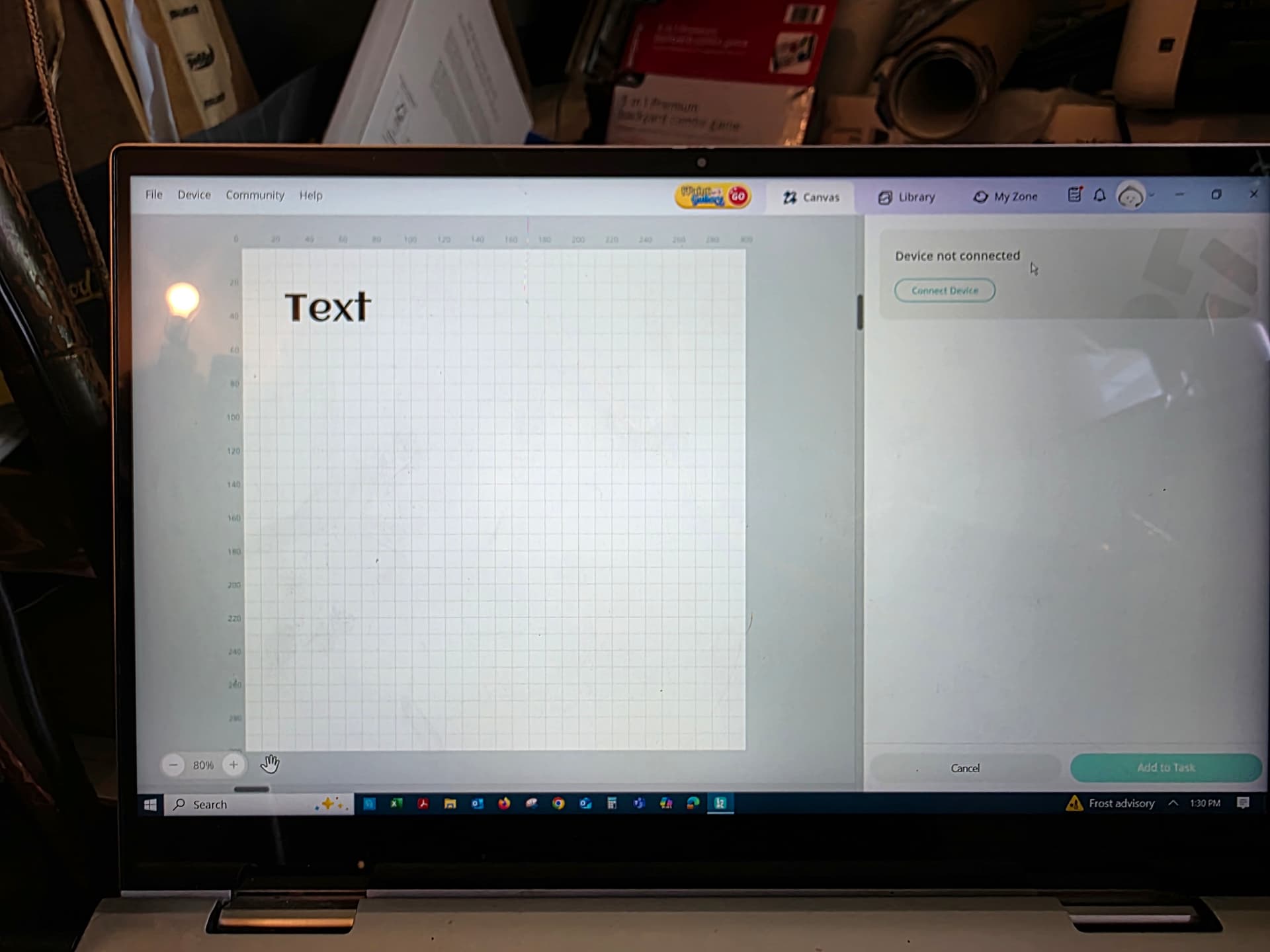
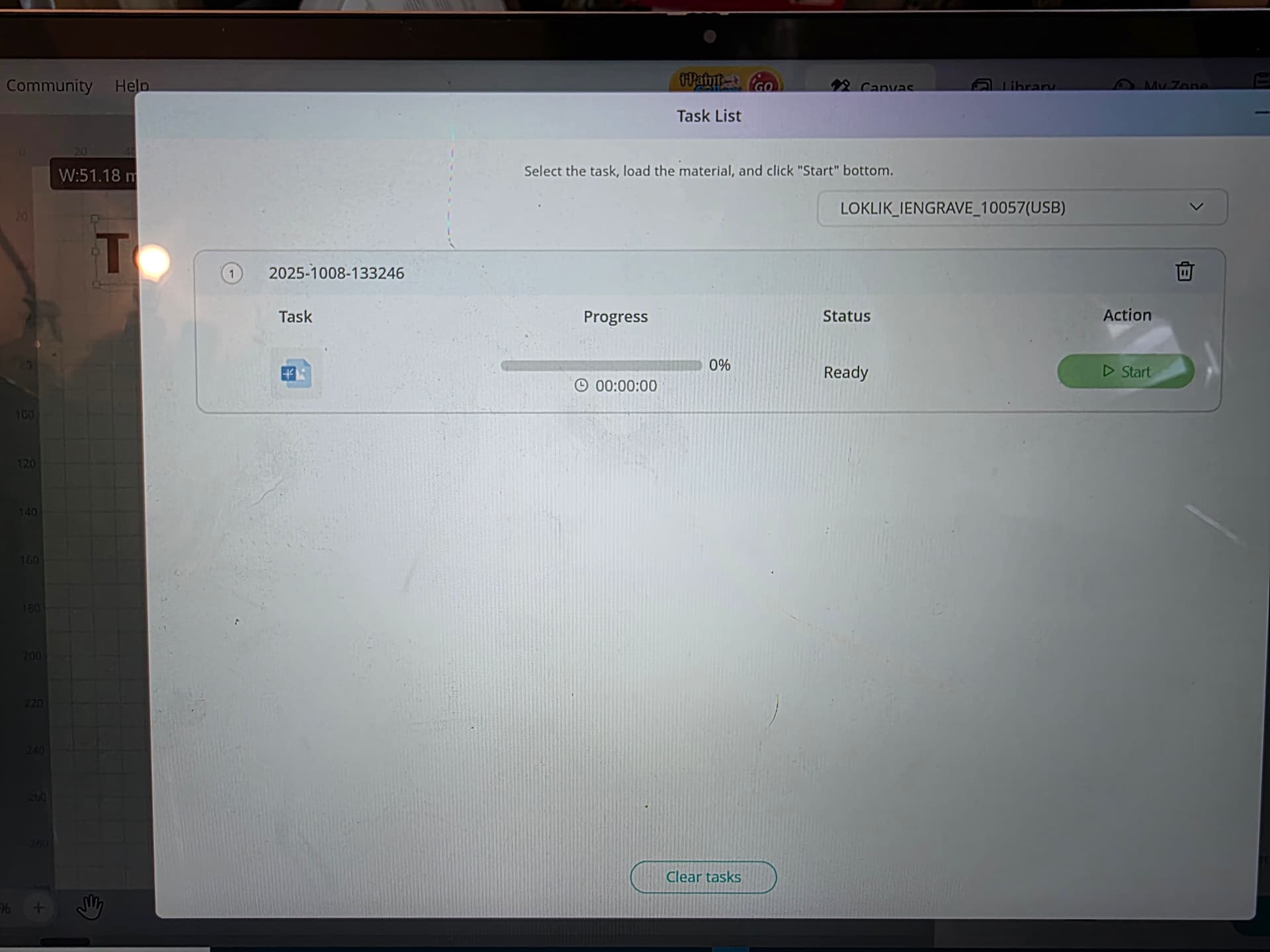
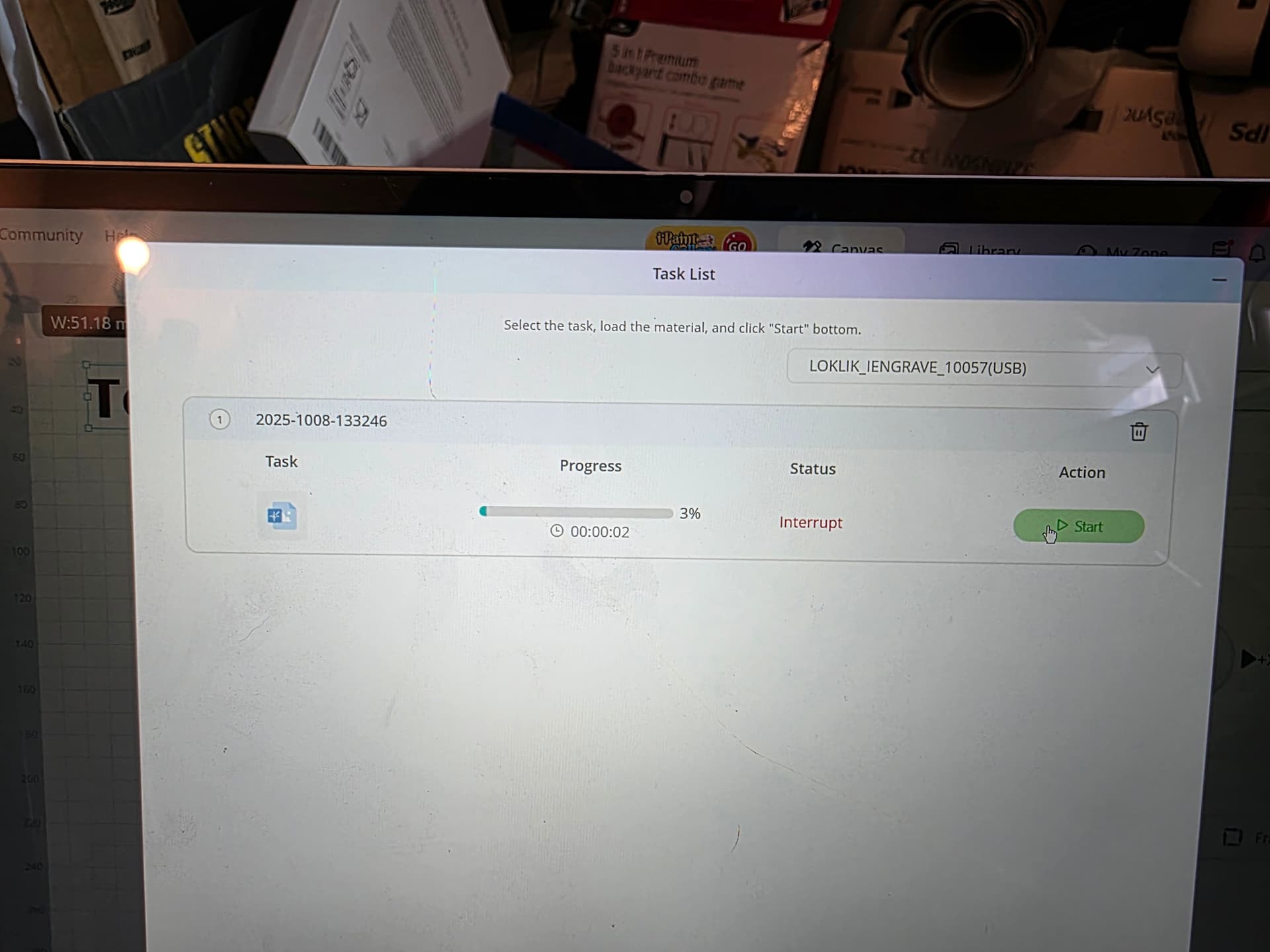
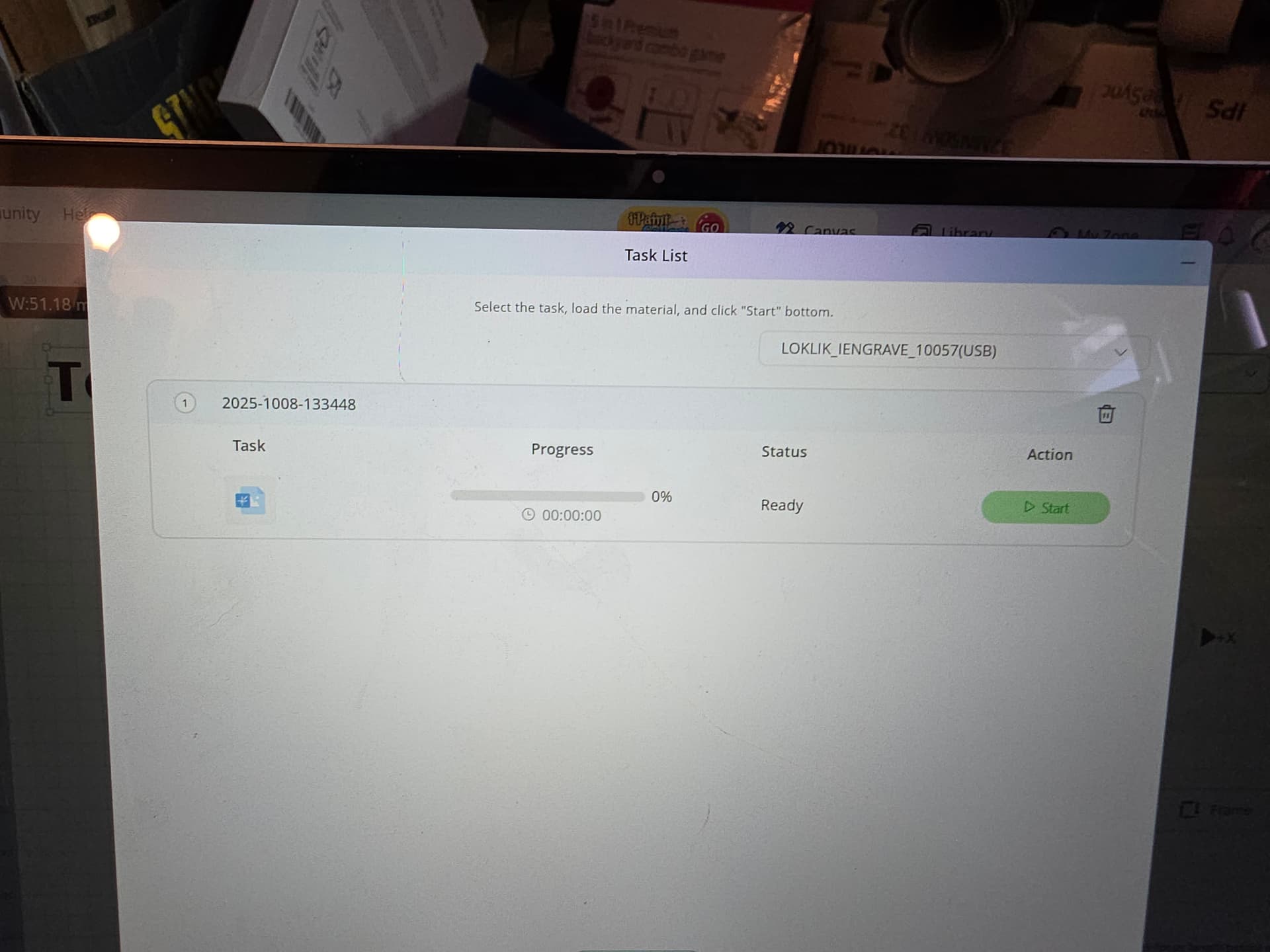
I can now get it to start, but it only moves left to right. It wont move front to back.
2 Likes
What are your settings for engraving? Just curious. Also, I’ve noticed that you have your air assist hooked up to your laser head. Could you please detach it and see what happens? Let me know so we can proceed to the next steps.
2 Likes
Can you please do a 9" x 9" square in your fresh canvas? Then, highlight that and just set it to flat, engrave to 3mm basswood board or cardstock if you have? What does your screen look like and your laser module behaved like?
2 Likes
still only moves left/right. Frame failed
1 Like
Not quite there yet—but we’re not giving up! Let’s run through the steps again, same as before, with one key twist at STEP 4:
Before anything else, double-check that the screw securing your laser module (the head) is firmly tightened. No wiggle room allowed—literally.
 Once that’s locked in, give the laser head a few gentle taps. Think of it as a wake-up nudge.
 Now manually move the laser head to the center of your workspace. Glide it up, down, left, and right several times—smooth and steady.
 Next, guide the laser head through all four corners of your working area. At each corner, press in firmly—really firmly—to make sure the module registers the boundaries.
 Your final corner should land you back at home/origin, which is the top-left corner. That’s your reset point.
 Once you’ve done all that, continue with the remaining steps just as outlined earlier.
 Crossing fingers this round does the trick! If not, it may be time to reach out to Contact Us – HTVRONT for a laser head module replacement.
2 Likes
Nope - it wont frame now again. And if i try to move it by the Y+, the belts dont even move. Now what?
2 Likes
Quick check-in:
Have you looked at the belt screws to see if they’re cranked down too tight? If they are, go ahead and loosen them slightly—just enough to allow smooth movement without wobble.
 Next, inspect the rails. Make sure they’re clean and free of any debris, dust, or stray material that could block the path.
And don’t forget to check that all cords and cables are safely out of the way—nothing should be tugging, catching, or interfering with motion.
1 Like
Nothing is in the way - I have only been able to use it once.
1 Like